



Getting locked out of your own computer is one of those small disasters that feels much bigger than it is. If it’s a local Windows account, you can recover access yourself in a few minutes using tools already built into Windows. No paid unlock software, no reinstall and no losing your files.
This guide walks through the method step by step. I’ve done this myself on the Windows 11 laptop in the video below, and the same steps work on Windows 10 as well.
Disclaimer – This method is for recovering access to a computer you own or are authorised to use. It works only on local Windows accounts. If you sign in with a Microsoft account (an email and password), skip to the Microsoft account section further down as the process is completely different for that. Also, do note that this method will not work if Bitlocker is enabled on your Windows PC.
Before You Start: Which Type of Account Do You Have?
This matters, because it decides which method you need.
- Local account – You set a username and password directly on the PC, no email involved. This is common on older machines, work laptops, and PCs set up offline.
- Microsoft account – You sign in with an email address (Outlook, Hotmail, Live, or any email tied to Microsoft). Use the Microsoft account reset instead, for which you can jump to that section.
Not sure? If your login screen shows an email address under your name, it’s a Microsoft account.
How To Recover a Forgotten Windows Password: Step by Step
The idea behind this method is simple. Windows has an Accessibility button on the lock screen that anyone can click before logging in. We temporarily swap that button so it opens Command Prompt instead, which lets us reset the password, and then we swap it back once we’re in.
Step 1: Open recovery mode from the lock screen
On the login screen, hold the Shift key and click on Restart from the Power icon on the bottom right corner. Keep holding Shift until the PC restarts into a blue recovery screen.
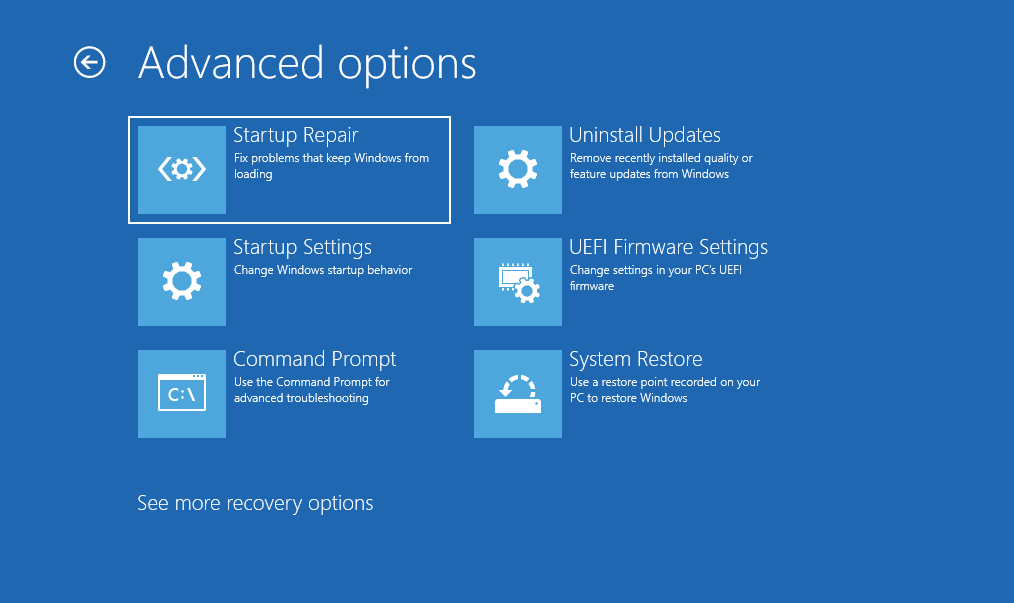
Step 2: Navigate to Command Prompt
On the blue “Choose an option” screen, go to:
Troubleshoot → Advanced options → Command Prompt
Step 3: Swap the Accessibility file for Command Prompt
In the Command Prompt window, type these commands one at a time, pressing Enter after each:
C:
cd windows\system32
ren utilman.exe utilman1.exe
ren cmd.exe utilman.exe
exit
The first two lines move you into the System32 folder. The third renames the original Accessibility file so you can restore it later. The fourth puts Command Prompt in its place.
After typing exit, restart the PC.
Note on drive letters: in recovery mode your Windows drive is usually C:, but not always. If cd windows\system32 returns an error, your Windows folder may be on another letter, try D: then the cd command again.
Step 4: Click the Accessibility icon
Back at the normal login screen, click the Accessibility icon in the bottom-right corner. Because of the swap, instead of the accessibility menu, a Command Prompt window opens, with full system privileges.
Step 5: Open user account settings
In that Command Prompt, type:
control userpasswords2
This opens the User Accounts window. Select your username from the list and then click on Reset Password.
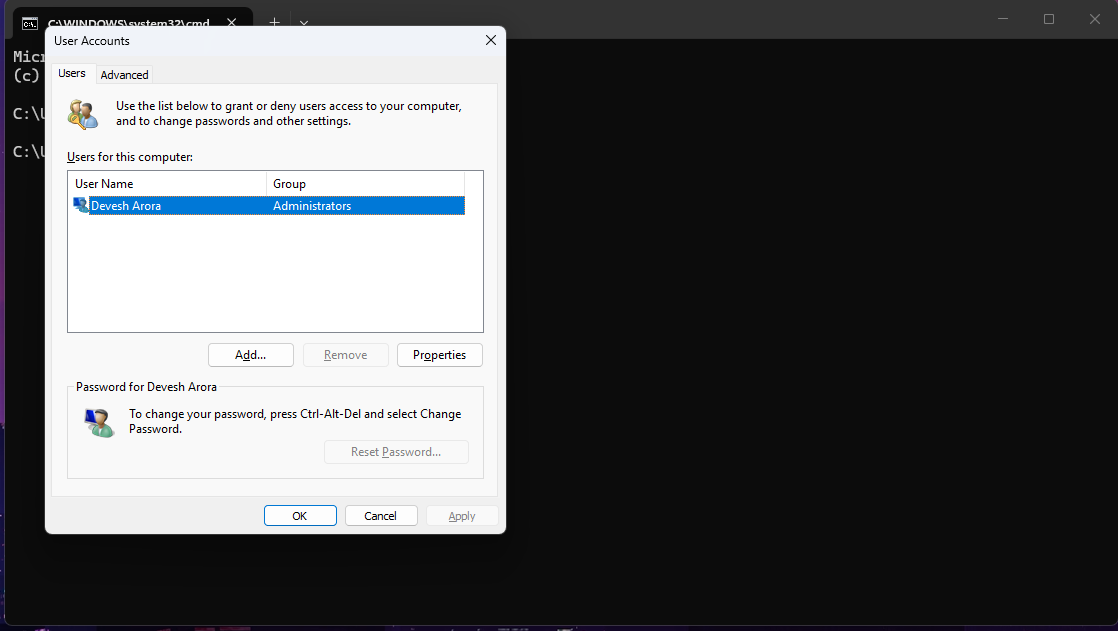
Type your new password (twice to confirm). Just click Ok, then click on Ok again.
Close the windows and log in with your new password. You’re back in, with all your files intact.
Restore the Original File Afterward
Don’t skip this. Right now, anyone who clicks the Accessibility icon on your lock screen gets a full-privilege Command Prompt, which is a serious security hole. You need to put the original file back.
Open recovery mode again (Shift + Restart → Troubleshoot → Advanced options → Command Prompt) and run the following commands:
C:
cd windows\system32
ren utilman.exe cmd.exe
ren utilman1.exe utilman.exe
exit
This restores both files to exactly how they were. Restart, and your PC is secure again with the Accessibility button working normally.
Reset Password on Windows PC with a Microsoft Account
If your login is tied to an email address, none of the above applies, and thankfully the fix is far easier, because Microsoft lets you reset online from any device:
- On your phone or another computer, go to account.live.com/password/reset
- Enter the email address you use to sign in to Windows
- Verify your identity through the code Microsoft sends to your recovery email or phone
- Set a new password
- Back on the locked PC, connect it to the internet and sign in with the new password
Because the password lives on Microsoft’s servers rather than your PC, the new one syncs down as soon as the machine is online.
